Frequently Asked Questions (FAQ)
Updated date: 01/07/2026 Updated by: VNPT eContract's team
Overview and Deployment
How can I register to use VNPT eContract?
Answer:
Users can click Free trial and register here, or contact the toll-free hotline 18001260, extension 1, for registration support.
Do I need an account to use VNPT eContract?
Answer:
An account is required to use all VNPT eContract features. Some basic features, such as document lookup, may be configured for access without login depending on the deployment scope.
Does VNPT eContract have a mobile app?
Answer:
Yes. VNPT eContract supports multiple platforms, including mobile apps for iOS and Android, allowing users to access, monitor, and process documents when needed.
Can I log in to VNPT eContract on multiple devices?
Answer:
Yes. Users can log in on mobile phones or computers with internet access. For security, users should log out from public devices and enable two-factor authentication if configured.
Which deployment models is VNPT eContract Premium suitable for?
Answer:
VNPT eContract Premium is suitable for dedicated customer deployments such as On-Premise, Private Cloud, or isolated private cloud/VPC environments. The final model is agreed after assessing infrastructure, security requirements, user scale, document volume, and integration needs.
How is eContract Premium different from eContract SaaS?
Answer:
eContract SaaS is a shared service on VNPT infrastructure, suitable for quick deployment and standard processes. eContract Premium is a dedicated deployment for customers that require private data storage, deep integration with HRM/ERP/CRM/DMS/ECM, dedicated SSO/IAM, workflow/template/permission/UI customization, and higher control over security, operations, data, and audit logs.
What document types can eContract Premium be used for?
Answer:
The system can be used for employment contracts, commercial contracts, contract appendices, acceptance minutes, reconciliation minutes, commitments, agreements, internal forms, approval documents, signing dossiers, and other electronic forms that require creation, approval, digital signing, and electronic storage.
Does eContract Premium support multiple companies or legal entities in one system?
Answer:
Yes. The system supports multiple companies or legal entities in the same system. Each company can have its own legal information, users, permissions, templates, workflows, and digital signing configuration. A user can be authorized for one or more companies depending on their role.
Document Creation, Search, and Management
How can users create documents?
Answer:
Users can create documents directly on the Web UI, from configured templates, by bulk import from Excel, by uploading existing PDF/Word files, or through integration APIs from external business systems. Available methods depend on deployed features and customer workflow.
Does the system support bulk document creation?
Answer:
Yes. The system supports batch document creation from import files or APIs. This is suitable for high-volume use cases such as employment contracts, appendices, commitments, notices, or periodic documents. Input data must follow the required import template or API structure.
Can document content be edited after creation?
Answer:
It depends on the document status and user permissions. Documents are usually editable while they are still draft/new or before the process starts. After a document has been sent for signing, approved, or digitally signed, editing is restricted to preserve integrity and processing history.
Can a sent document be canceled or recalled?
Answer:
Yes, if the document is not completed and the user has cancel/recall permission. After completion or full digital signing, cancellation or recall must follow the customer's internal business policy and may require a correction, replacement, or cancellation document.
Where can users search completed documents?
Answer:
Users can search documents by document number, subject, document type, status, creator, signer, created date, completed date, or related company/unit. Depending on configuration, the system may provide a dedicated lookup portal for internal users, partners, customers, or employees.
Document Templates
How do I create and manage document templates?
Answer:
Users can create and manage document templates in the template management module. The system supports creating, editing, storing, classifying templates, and configuring required information such as data variables or signing positions.
Can document templates be customized for company-specific needs?
Answer:
Yes. Document templates can be customized in content, format, data variables, signing positions, and applicable workflows to match each company's business needs or document type.
What is a dynamic document template?
Answer:
A dynamic document template is a document template containing data variables. When a document is created, the system replaces variables with actual data entered by users, imported from Excel, or sent from external systems through APIs.
Does the system support repeating variables in Word templates?
Answer:
Yes. The system can support repeating variables in Word templates to render multi-row data such as goods/services, occupations, employees, clauses, payment details, or acceptance details. Imported or API data must match the array structure configured for the repeating variable.
When should I use a Word template and when should I use a PDF file?
Answer:
Use a Word template when document content must be generated dynamically from input data. Use a PDF file when the content is finalized and only needs approval, signing, or digital signing.
Can fixed signing positions be configured by document template?
Answer:
Yes. Fixed signing positions can be configured by document template, signer role, or document type. A signing position can include signing page, signature box coordinates, size, and displayed signature information. This reduces mistakes when processing large document volumes.
Workflow, Approval, and Signing
What is dynamic process management?
Answer:
Dynamic process management allows administrators to set up and adjust business workflows flexibly, adapting to organizational changes and business needs.
How do I set up and adjust dynamic processes?
Answer:
Administrators can use the process configuration tool to create and edit processing steps, processors, permissions, and transition conditions according to business requirements.
What steps can be configured in a document workflow?
Answer:
A workflow can include document creation, content review, data filling, internal approval, sign draw, personal digital signing, organization digital signing/company seal, partner or employee signing, completion, and storage. Step order, processors, transition conditions, and permissions can be configured per organization.
Does the system support multiple signers on one document?
Answer:
Yes. A document can have multiple signers, signing roles, and signing positions. The system can support sequential or parallel signing depending on workflow configuration.
Does the system support bulk signing?
Answer:
Yes. Bulk signing helps reduce processing time when users need to sign many documents at once. The number of documents per signing batch depends on the signing method, digital signing service policy, system configuration, and deployment scope.
What is digital signing and how do I use it?
Answer:
Digital signing uses a digital certificate to validate the authenticity and integrity of an electronic document. Users can digitally sign in the system when they have processing permission and an appropriate signing method configured.
What is sign draw and when should it be used?
Answer:
Sign draw is usually used as an internal acknowledgement that a document has been reviewed or accepted before formal signing. It can be shown as a signature image, processor information, or internal confirmation mark.
What is the difference between sign draw and digital signing?
Answer:
Sign draw is mainly for internal acknowledgement or preliminary review. Digital signing uses a digital certificate to validate document integrity and authenticity; if the document changes after digital signing, the signature may be shown as invalid.
Can a processor reject a document?
Answer:
Yes. If authorized, a processor can reject a document during approval or signing. The user should enter a rejection reason so the creator or related parties can revise, recreate, or continue handling the document.
Digital Signatures and Digital Certificates
Which digital signing methods does eContract Premium support?
Answer:
Depending on deployment scope, the system can support USB Token signing, VNPT SmartCA remote signing, centralized HSM/SignServer signing, automated organization/company signing, or integration with other CA services. The actual method must be assessed and configured according to business process, security policy, and customer certificates.
Where can I download the VNPT SmartCA plugin?
Answer:
Users can visit https://kyso.vnpt-ca.vn/, select Plugin ký số, and download the version matching their operating system. Users can also download it directly here.
What does a user need to prepare for digital signing?
Answer:
Users need an eContract account, permission to process/sign documents, a valid digital certificate, the required signing device or software, and stable network connectivity. USB Token signing requires the token and driver/plugin. SmartCA signing requires a SmartCA account and confirmation through the service authentication method.
Can the system check whether the digital certificate matches the signer?
Answer:
This can be configured. The system can compare certificate information with user or organization data such as full name, email, identity number, tax code, UID/Subject, or certificate issuer. The exact checks depend on certificate data, customer policy, and system configuration.
Can an expired digital certificate be used for signing?
Answer:
No. An expired certificate cannot be used for valid digital signing. The user must renew the certificate or update a new certificate before signing.
How do I add and manage users' digital certificates?
Answer:
Users' digital certificates can be added and managed in the digital certificate management module. Depending on permissions, users or administrators can add, rename, set default, or revoke certificates.
Which tools can be used to verify a digital signature on a PDF?
Answer:
Users can verify PDF signatures using Adobe Acrobat Reader, Foxit PDF Reader, or validation tools provided within the deployment scope. Check signature status, certificate information, signing time, certificate authority, and whether the document was modified after signing.
Does the system support timestamped digital signatures?
Answer:
This can be supported. The system can integrate with timestamp/TSA services to attach a trusted signing time to digital signatures, improving trust for legal, audit, and long-term archival use cases.
System Integration
Does eContract Premium support API integration?
Answer:
Yes. The system provides APIs for integration with HRM, ERP, CRM, DMS, ECM, core systems, internal portals, or HR systems. Common APIs include document creation, batch creation, template data submission, status retrieval, completed file download, user synchronization, department/unit synchronization, and status webhook.
What is webhook used for?
Answer:
Webhook is used to notify external systems of document status changes in near real time. For example, when a document is signed, rejected, canceled, or completed, eContract can send a webhook so the integrated system can update its corresponding status.
Does the system support SSO?
Answer:
Yes. eContract Premium can integrate with Microsoft Entra ID/Azure AD, SAML 2.0, OAuth2/OpenID Connect, or internal IAM systems. SSO allows users to log in with their organization account and supports centralized access control.
Does the system support automatic user synchronization?
Answer:
Yes. User synchronization can be implemented through APIs, data files, or SCIM if included in the project scope. Common synchronized data includes account, full name, email, phone number, employee code, department, title, company, and active status.
Can eContract integrate with storage systems such as S3, MinIO, SharePoint, or OneDrive?
Answer:
This can be implemented on request. The system can store or synchronize completed document files to MinIO, S3-compatible storage, AWS S3, SharePoint, OneDrive, or internal repositories. The integration scope should clarify authentication, folder structure, file naming rules, access permissions, retention, encryption, and retry handling.
What should external systems consider when integrating through APIs?
Answer:
External systems should use the correct endpoint and authentication method, send the required data structure, avoid unnecessary sensitive data, implement retry for temporary failures, store document numbers or transaction IDs for reconciliation, track status through APIs/webhook, and protect API keys/tokens without hard-coding them in client-side source code.
Users, Companies, and Permissions
How do I manage users in the system?
Answer:
Administrators can manage users in the user management module, including creating users, editing information, assigning permissions, locking/unlocking accounts, and tracking user activities.
How can one account be used across multiple companies?
Answer:
The system allows one user account to be associated with multiple companies. Users can switch between companies they are authorized for without logging out.
How do I manage account permissions across multiple companies?
Answer:
Account permissions can be managed separately for each company. Administrators can assign permissions by role, task, department, document type, and data scope within each company.
Can administrators assign detailed permissions to users?
Answer:
Yes. The system supports permissions by role, function, company, department, document type, and data scope. For example, one user may create documents for their department, another may approve, another may digitally sign, and administrators may configure templates, workflows, and users.
Should users share their account with others?
Answer:
No. Each user should use an individual account to ensure information security, accountability, and accurate audit logs. Account sharing increases security risk and makes incident responsibility difficult to determine.
What should I do if I suspect my password has been leaked?
Answer:
Change the password immediately, sign out from unused devices, inform the system administrator, review recent activity if available, and enable two-factor authentication if configured. Administrators may temporarily lock the account for investigation if abnormal access is detected.
Security, Data, Infrastructure, and Operations
Does the system ensure the security of electronic documents?
Answer:
Yes. The system applies protection mechanisms such as encrypted connections, access control, digital certificates, permissions, and audit logs to help secure electronic documents.
Is document data encrypted?
Answer:
Yes. Depending on configuration, the system can use HTTPS/TLS, sensitive data encryption, role-based access control, and audit logging. For On-Premise deployments, customers should also secure infrastructure layers such as firewall, WAF, network segmentation, backup, antivirus/EDR, server account management, and access monitoring.
Does the system record user activity logs?
Answer:
Yes. The system can record activity logs including actor, time, action, processing status, IP address, affected object, and result. Depending on configuration, application logs or technical logs may also be recorded for operations support.
How do I recover data in case of incidents?
Answer:
The system should have regular backup and restore procedures. In an incident, administrators restore data according to the backup/restore policy agreed in the deployment scope.
For On-Premise deployments, who operates the infrastructure?
Answer:
For On-Premise deployments, the customer typically manages servers, operating systems, network, firewall, database, storage, backup, and resource monitoring. VNPT coordinates application deployment, configuration, operation guidance, and software support according to the signed service agreement.
Does the system require regular data backup?
Answer:
Yes. Regular backup is required for database, document files, configuration files, important audit/reconciliation logs, and related storage components such as MinIO/S3 or internal repositories. Backup frequency, retention, and recovery plans should follow the customer's operation policy.
Does the system support High Availability deployment?
Answer:
High Availability can be implemented depending on customer requirements and infrastructure. A typical HA model includes multiple application servers, load balancing, database redundancy, fault-tolerant storage, and monitoring. The design should consider user scale, document volume, SLA, and budget.
What should be checked when the system is slow or inaccessible?
Answer:
Administrators should check application servers, CPU/RAM/Disk, database, storage/file server/MinIO/S3, network/firewall/proxy/load balancer, SSL/TLS and domain, application logs, web server logs, OS logs, and background services such as workers, schedulers, signing jobs, and email jobs. If support is needed, provide incident time, account, document number, screenshots, and related logs.
Email, Notifications, and OTP
Does the system send email notifications to users?
Answer:
Yes. The system can send email notifications when documents require processing/signing, are rejected, completed, close to expiry, or when accounts are created/reset. Email content and sender address can be configured for the deployment environment.
What should I do if I do not receive notification emails?
Answer:
Users should check Spam/Junk folders, account email address, mailbox capacity, and whether the organization's email system blocks the sender domain/address. Administrators should also check SMTP configuration, email service status, email logs, and organization email security policy.
What should I do if I do not receive OTP?
Answer:
Users should check the phone number, mobile signal, SMS spam/block settings, and retry after a short period. If the issue continues, administrators should check SMS gateway configuration, carrier status, OTP sending logs, and OTP rate limits.
Common PDF and Digital Signing Issues
Why can an uploaded PDF not be signed?
Answer:
Common causes include corrupted PDF structure, incompatible PDF/A content, edit-protected files, file size exceeding configuration, non-standard scanned/exported PDFs, or transparent images/graphics that cause sign draw or digital signing errors. Users should export the PDF again from the source file, rescan the document, or repair the PDF before uploading again.
How should I handle the error "Append mode requires a document without errors, even if recovery was possible" when sign draw fails?
Answer:
This error usually occurs when the PDF has structural issues, such as broken or incorrect cross-references. Users should recreate/rescan the file or repair it using PDF tools such as PDF2GO, iLovePDF, Smallpdf, or Adobe Acrobat before uploading again.
How should I handle the error "The smask key is not allowed in xobjects" when sign draw fails?
Answer:
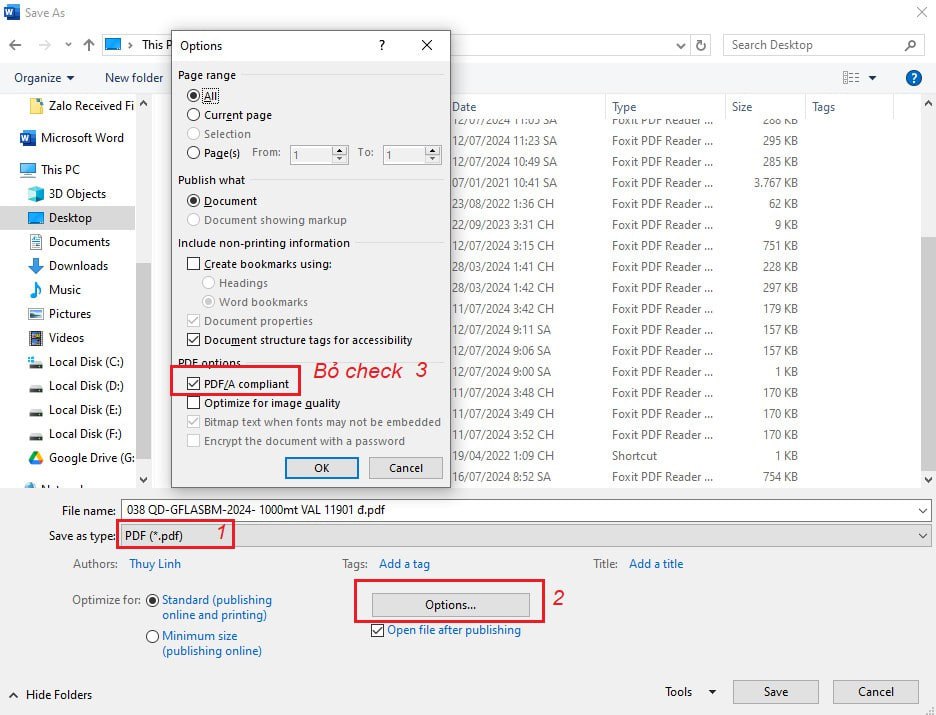
This error usually occurs when processing a PDF/A document that contains transparent graphic elements. Users should disable PDF/A mode when exporting from Word to PDF, convert the file to standard PDF, or use a signature image without transparent background.
What should be checked when digital signing fails because of a certificate?
Answer:
Check whether the certificate is valid, belongs to the correct signer/organization, the USB Token is connected, driver/plugin is installed, SmartCA account is active, CA service connection is stable, and the browser is not blocking popup/plugin communication. If the issue remains, provide signing time, document number, signing method, error screenshot, and related logs.
Why does a digital signature show a warning in PDF readers?
Answer:
Possible reasons include the CA root certificate is not trusted on the computer, the certificate is expired or revoked, the document was modified after signing, the PDF reader trust list is outdated, or the signature lacks revocation/timestamp information required by the reader's validation policy. Users should update trust lists/root certificates and validate according to the CA guidance.
Updates, Maintenance, and Support
Is the system regularly updated and upgraded?
Answer:
Yes. The system is updated and upgraded to improve features, performance, and security. Upgrade or maintenance schedules are announced according to the deployment scope and service agreement.
How is an eContract Premium version upgrade performed?
Answer:
An upgrade usually includes agreeing on scope and schedule, backing up data, upgrading UAT/staging if available, checking key functions, upgrading production according to the approved schedule, and monitoring after upgrade. For On-Premise systems, customers should coordinate access, infrastructure preparation, and maintenance windows.
Does maintenance affect users?
Answer:
It may affect users if maintenance requires service restart, application update, database update, or configuration changes. Maintenance should be announced in advance and scheduled outside peak hours to minimize business impact.
What should users check after an upgrade?
Answer:
Users or administrators should check login, document creation, document search, approval/sign draw/digital signing, email notification, completed file download, API/webhook integration if any, and customer-specific reports or custom functions.
Where can I get support if I encounter issues while using the system?
Answer:
Users can contact the technical support team via email, phone, or the online support system integrated into the platform, depending on the support channels agreed with the customer.
What information should users provide when requesting support?
Answer:
Users should provide the affected account/email, document number or document name, incident time, action being performed, error screenshot, signing method if related to digital signing, browser/OS/device, and system logs if the reporter is a technical administrator.
Where should new users start?
Answer:
New users should log in with the assigned account, check personal and company information, update or verify digital certificates if they have signing permission, review pending documents, create a test document if authorized, process approval/signing according to internal guidance, and search completed documents afterward.