Batch import of documents
Creation Date: June 26, 2023
Created By: VNPT eContract's team
Creating multiple documents in batch by importing
Batch import of documents: Create multiple documents in a batch using an existing document template and an Excel file containing the information of the documents to be created.
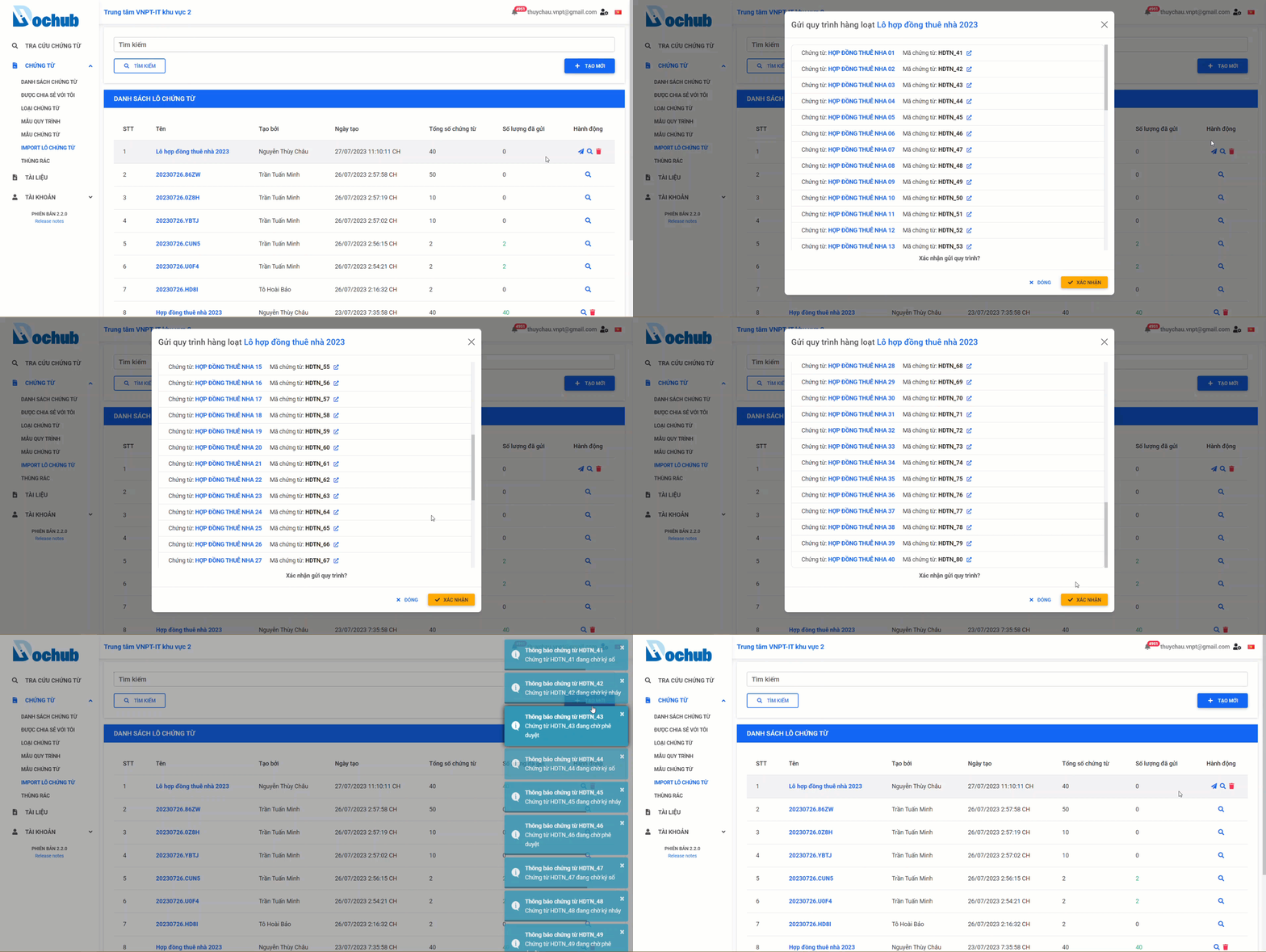
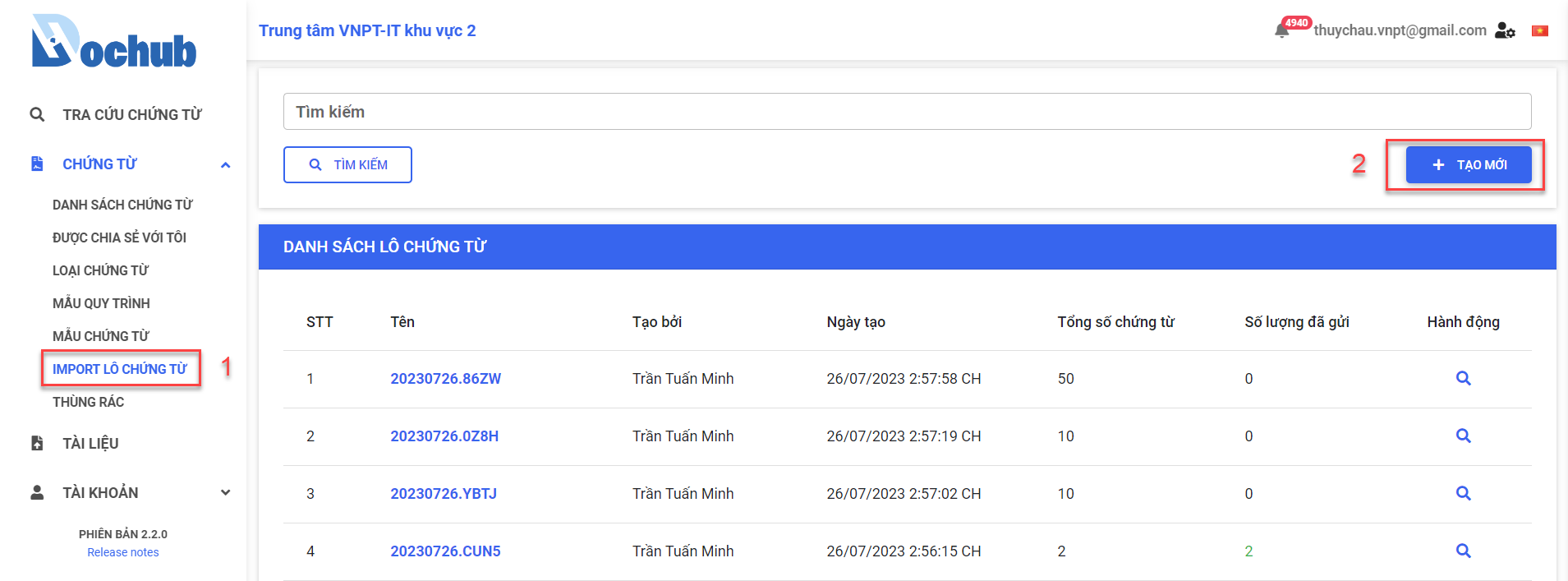
1. Open the "Batch import of documents" pop-up
2. Download and fill in the template excel file for creating the document batch
Download the template excel file for creating the document batch
tip
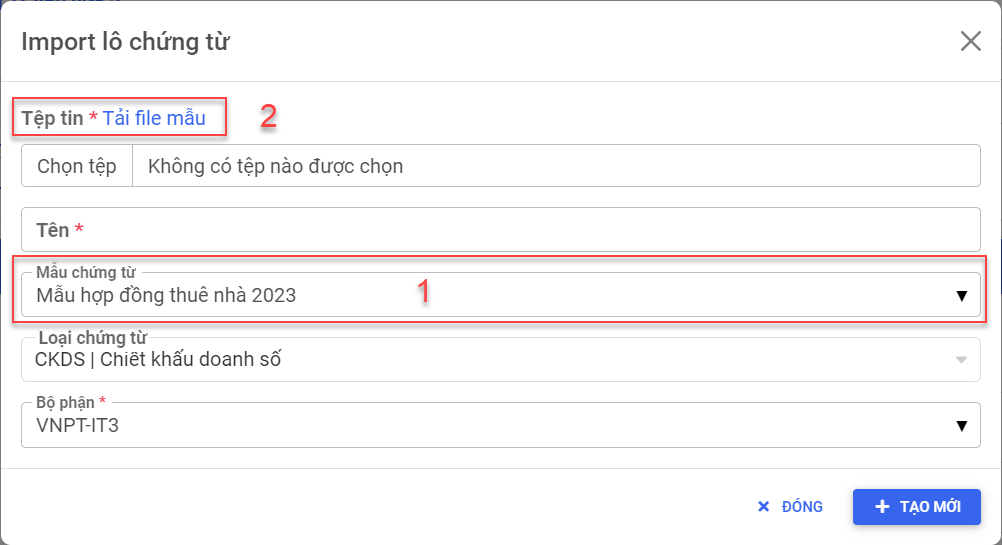
The system will automatically generate a template Excel file for importing the document batch corresponding to the selected document template. Steps to download the template Excel file based on the document template:
- Select the document template to be created in the batch
- Click "Download Template"
- Choose the storage location and click "Save"
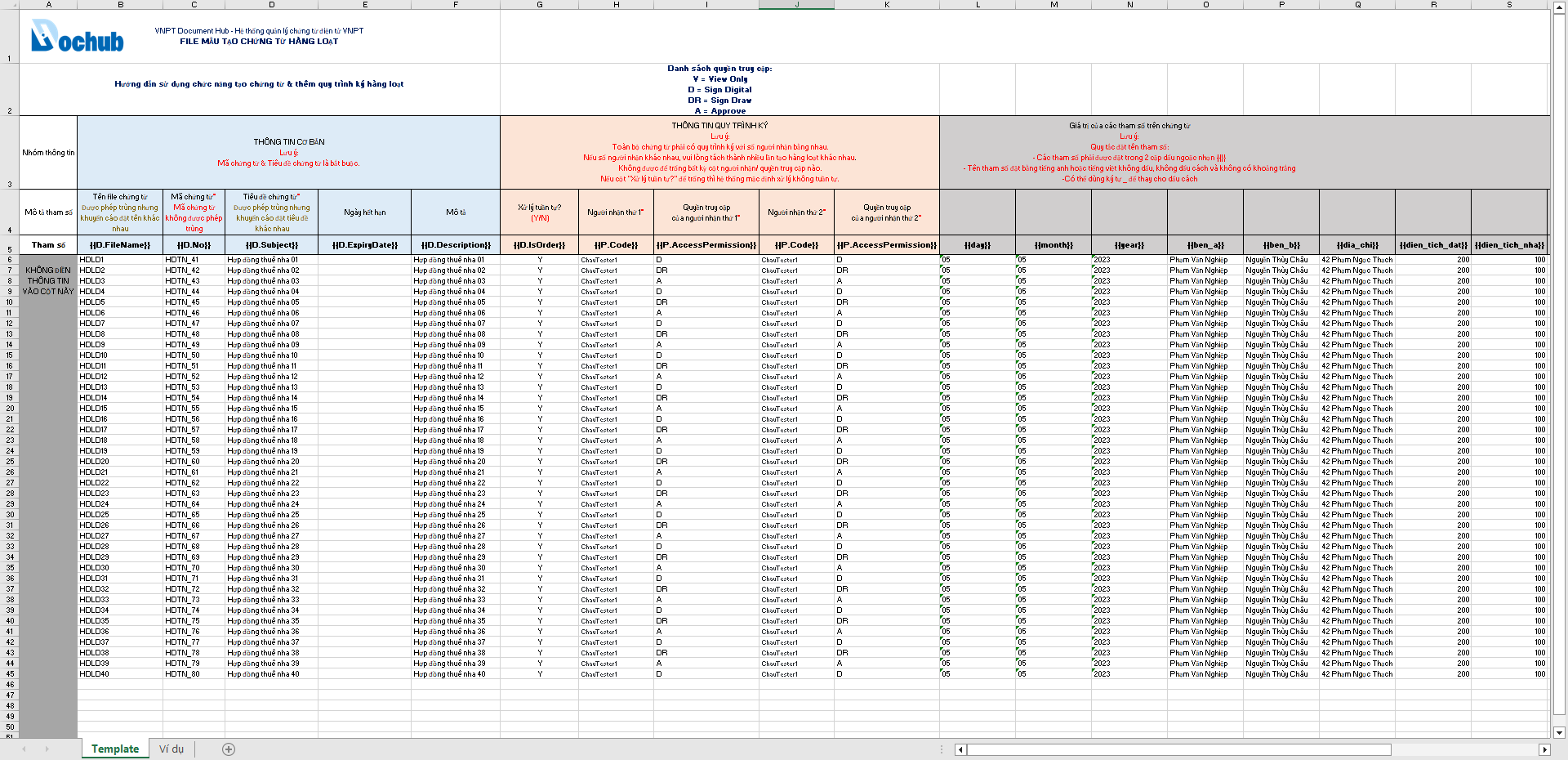
Open the downloaded excel file and fill in the complete information of the document list
Note about the signing process information:
- All documents must have the same number of recipients in the signing process.
- If the number of recipients is different, please split it into multiple batch imports.
- Do not leave any recipient/access rights column blank.
- If the "Process in order?" column is left blank, the system will default to "Out-of-order processing".
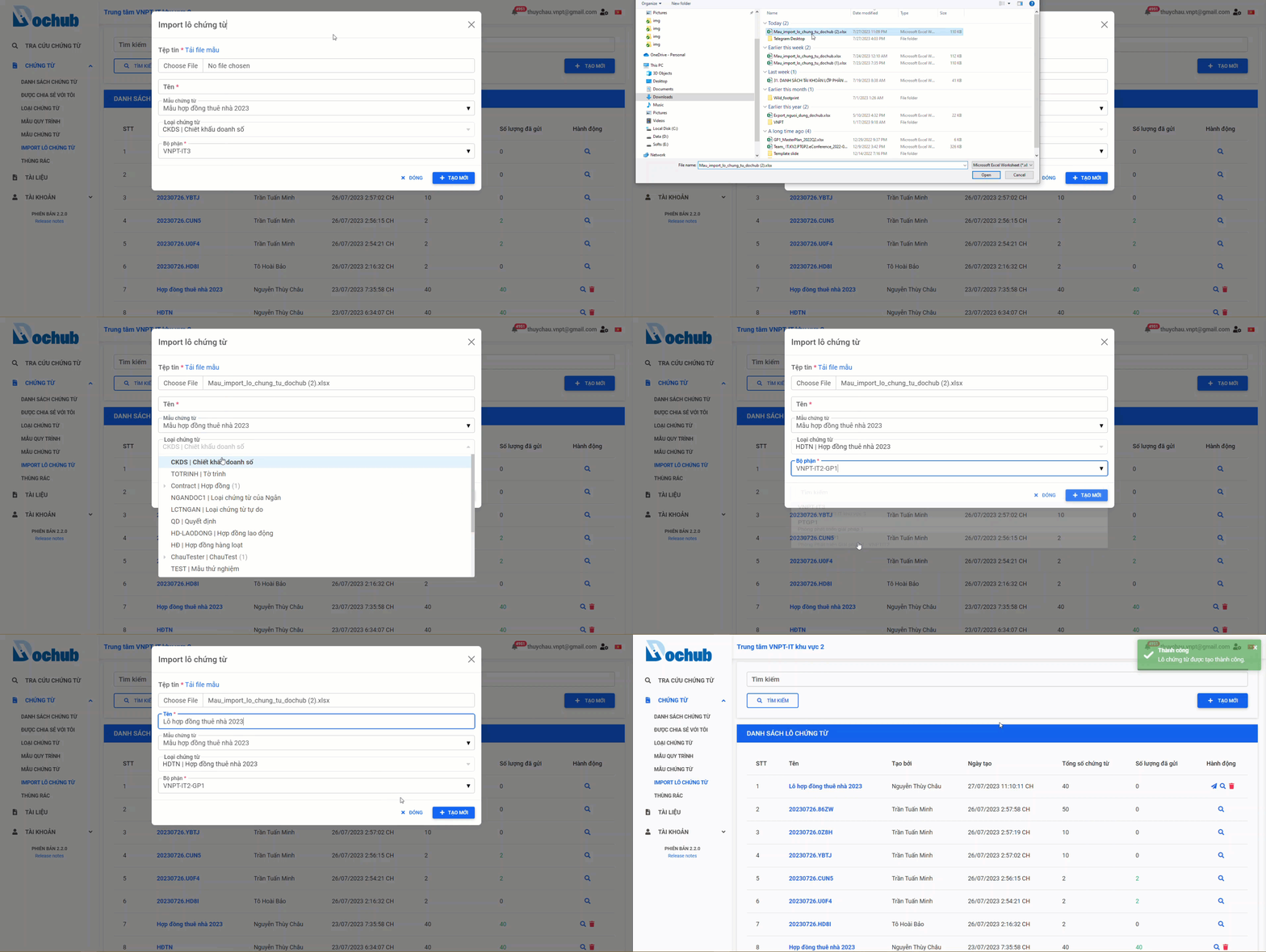
2. Create a new import document batch
After completing the process of updating the information in the Excel file for importing the document batch, the user uploads the updated file in the "Batch Import of Documents" Pop-up.
3. Sent to recipient